Starting a New Project
A Dialog project, as far as the extension is concerned, is a folder with a dialog.json file in
it. The Dialog IDE: Initialize Dialog Project command creates that file, along with a working
directory layout and enough starter source to run immediately.
Create and open a folder
Make an empty folder for the project using Finder, Explorer, or the command line, then open it in VS Code with ( on macOS). The Explorer on the left shows an empty workspace. Everything from here on happens inside that folder.
Run Initialize Dialog Project
Open the Command Palette (Cmd+Shift+P / Ctrl+Shift+P) and run Dialog IDE: Initialize
Dialog Project. It asks one question — the project name, which defaults to the folder’s name — and
then scaffolds the project. If a dialog.json already exists in the folder, the command stops
without changing anything.
What it creates
| Path | Purpose |
|---|---|
|
Your story sources. Starts with |
|
The Dialog standard library and other shared code. Starts with |
|
Sources loaded only when running under the debugger. Empty to begin with. |
|
Sources loaded only when running tests. Empty to begin with. |
|
Starter |
|
A minimal room and player object: the least source that will start an interactive prompt. |
|
A placeholder cover image at the project root. Replace it with your own artwork; a |
|
Two "how to play interactive fiction" documents, wired into |
|
The project descriptor, described next. |
When the command finishes, main/story.dg opens in the editor so you have somewhere to start
writing.
The generated dialog.json
{
  "name": "my-project",
  "sources": {
    "main": ["main"],
    "test": ["test", "lib/unit.dg"],
    "debug": ["debug", "lib/stddebug.dg"],
    "library": ["lib/stdlib.dg"]
  },
  "feelies": [
    { "path": "introduction-to-if.pdf", "name": "Introduction to IF" },
    { "path": "play-if-card.pdf", "name": "IF in One Page" }
  ]
}
The sources object lists, per category, the directories and files that make up the project. Each
entry is either a directory (every .dg file directly inside it) or a single file path. The four
categories, the rules for ordering, and the rest of dialog.json are covered in
Organizing Your Sources.
Run it for the first time
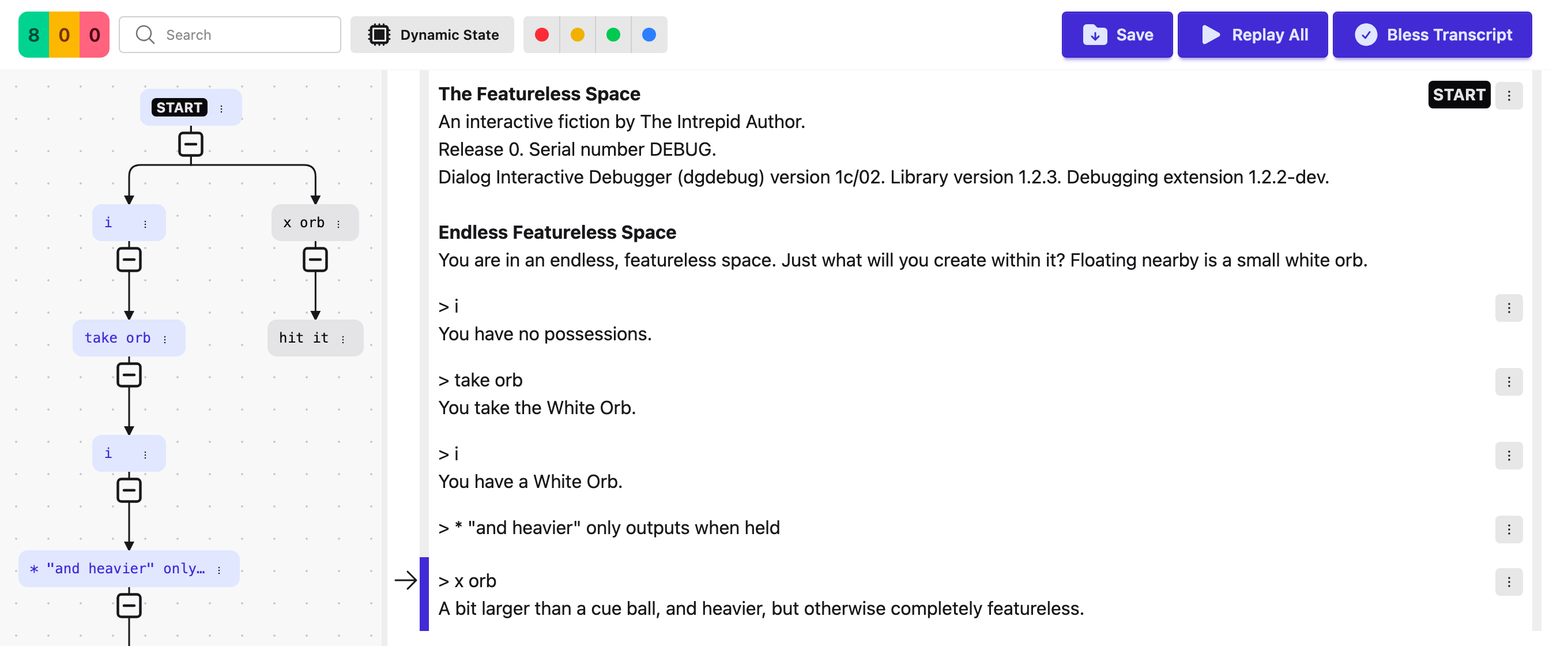
Click the Dialog Skein item in the status bar, or run Dialog IDE: Run Default Skein. The Skein
panel opens beside your editor. The first thing it shows is the interpreter’s startup banner — this
is the tree’s root, called START. Type a command into the box at the bottom, press Enter,
and the response comes back as a new knot below the root.
That is the whole loop. Creating a Skein and Touring the Panel tours every control in the panel.
Opening an existing project
There is nothing special to do: on any folder that contains a
dialog.json. If the folder has a .dg file that no source category covers, the extension points
it out — see the uncovered-source warning in Organizing Your Sources.
What’s next
Organizing Your Sources — how dialog.json organizes sources.