Creating a Skein and Touring the Panel
This chapter is a tour of the Skein panel, control by control: how to create and open a skein, the four regions of the panel, the per-knot menu, the navbar, replaying, search, and the keyboard shortcuts. It assumes you have read How the Skein Works: Time Travel and the Tree of Timelines and know what knots, the spine, and blessing are.
Creating and opening a skein
A skein is stored in a .skein file at the project root. A project can have several; the commands
below all work through the Command Palette.
| Command | What it does |
|---|---|
Dialog IDE: New Skein… |
Creates a skein. Prompts for the engine ( |
Dialog IDE: Run Default Skein |
Starts a session from |
Dialog IDE: Run Skein… |
Lets you pick from every |
Dialog IDE: Open Skein |
Brings the panel for the running session back into view. |
Dialog IDE: Save Skein |
Writes the tree back to its |
Dialog IDE: Stop Skein |
Stops the running session. Stopping never saves. |
Only one session runs at a time; starting another prompts you to stop the current one. The status bar shows the running session’s file and engine, and clicking it opens the panel (or, when nothing is running, starts the default skein).
default.skein is the file the extension reaches for by default. It is the name New Skein…
suggests, the only file Run Default Skein will start, and the skein Export Web Page reads when
it looks for a WALKTHROUGH-labelled knot. When to keep more than one skein is covered in
When to Use More Than One Skein.
The four regions of the panel
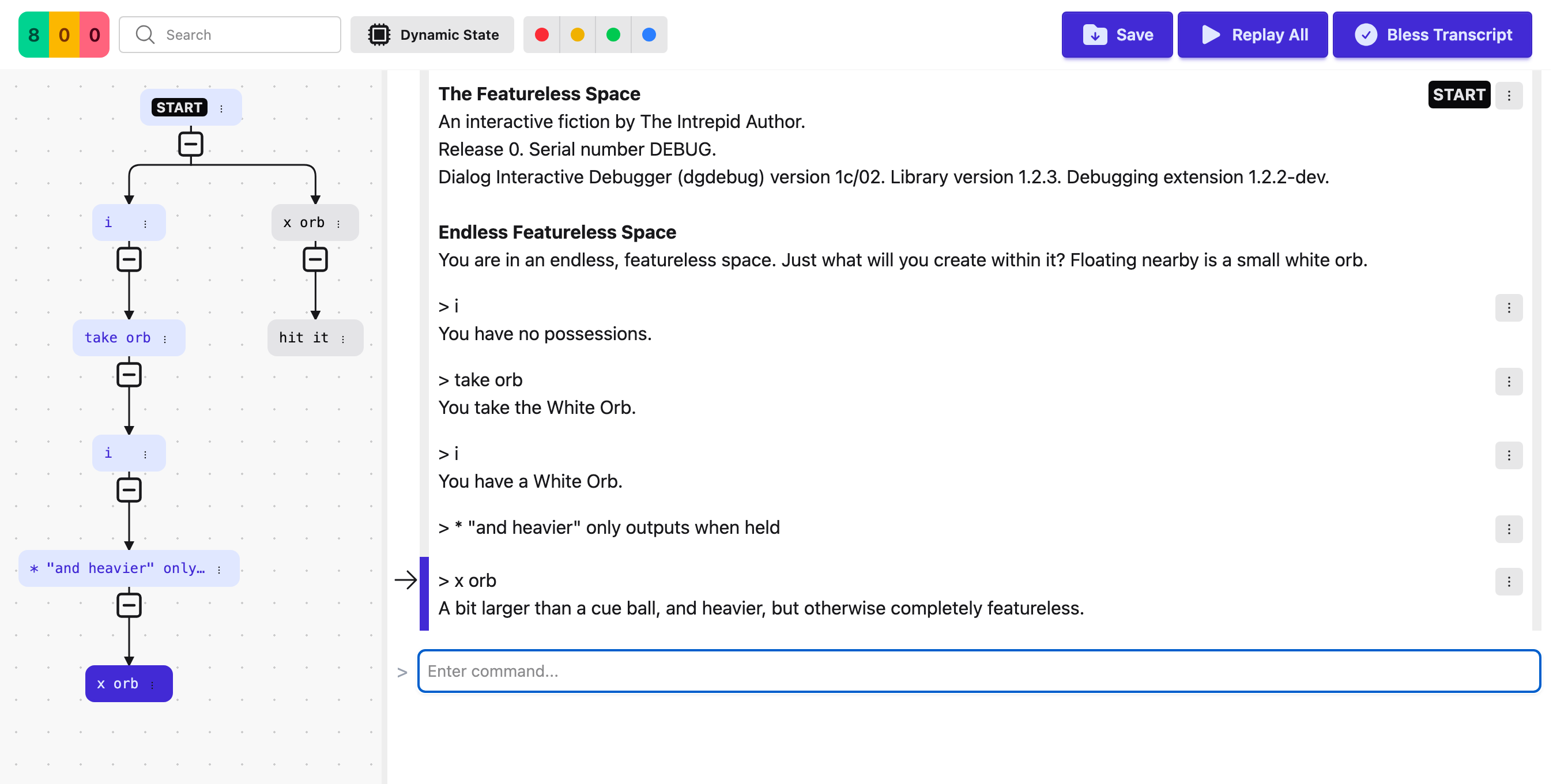
The panel is a fixed-height column. Across the top is the navbar, which never scrolls. Below it, a row holds the nav graph on the left and the transcript on the right, each scrolling independently. Along the bottom is the command input.
The transcript
The transcript renders the spine — root to selected leaf — one row per knot, each showing the command and its response.
The active knot has a blue left border. Every knot also has a status-coloured left border: grey for valid, yellow for new, red for error. A valid knot’s response is shown with its real styling, so bold and colour from your project come through. A new or error knot is shown instead in a fixed-width font with visible whitespace — dots for spaces, a marker for newlines — and, for an error knot, a word-level diff: removed text struck through in red, added text in blue.
At the top-right of each row is a cluster: a lock icon if the knot is locked, a marker dot if it is marked, a label chip if it is labelled, and always the "…" button that opens the knot’s actions menu. A knot reached by answering a single-keystroke prompt shows its keystroke as a small pill.
Clicking anywhere on a row except the menu button makes that knot the active knot. There is no right-click menu; the "…" button is the only way into a knot’s actions.

The command input
Most of the time the command input is a single text field prefixed with >. Type a command and
press Enter. After each command the field clears, refocuses, and scrolls back into view.
When a knot’s response ends on a single-keystroke prompt — a "press any key" pause, a disambiguation menu — the input changes to a one-character field labelled Key:, with Enter, Space, and Backspace buttons beside it. Any single printable key you type is sent immediately.
The nav graph
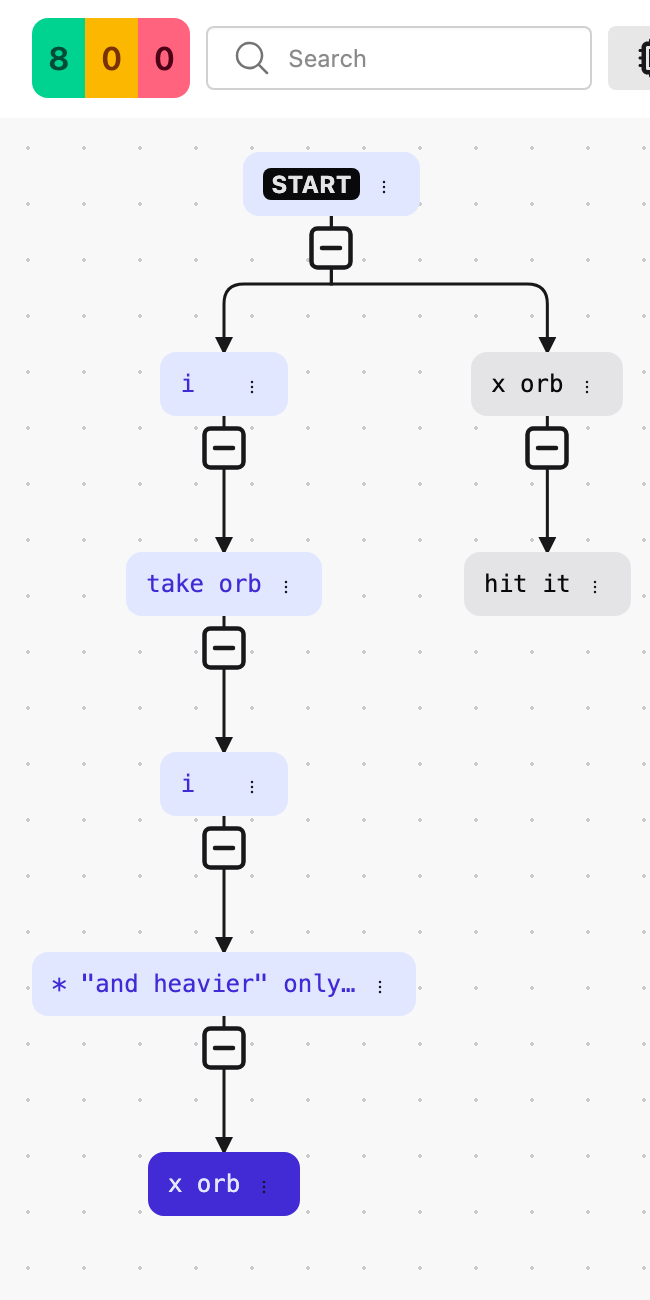
The nav graph on the left shows the entire tree, not just the spine. Nodes are coloured by status the same way transcript rows are, and a valid node with a troubled descendant is given a faded tint of that descendant’s status, so problems in collapsed branches are still visible.
Each node is a pill showing the status icon, any lock, marker, or label, the command text, and a compact "…" button. Click a pill — or focus it and press Enter — to make that knot active; the transcript redraws to the path down to it.
A node with children has a small expand/collapse control beneath it; Option+X / Alt+X toggles it for the active knot. New skeins start fully expanded. Connector lines are drawn behind the pills and redrawn whenever the tree changes.
To move around a large tree: drag the background of the pane to pan it, and use the mouse wheel to zoom in and out centred on the pointer. A + / − button pair at the bottom-right zooms centred on the middle of the view. The divider between the nav graph and the transcript can be dragged to change their split, and the position is remembered.
The per-knot actions menu
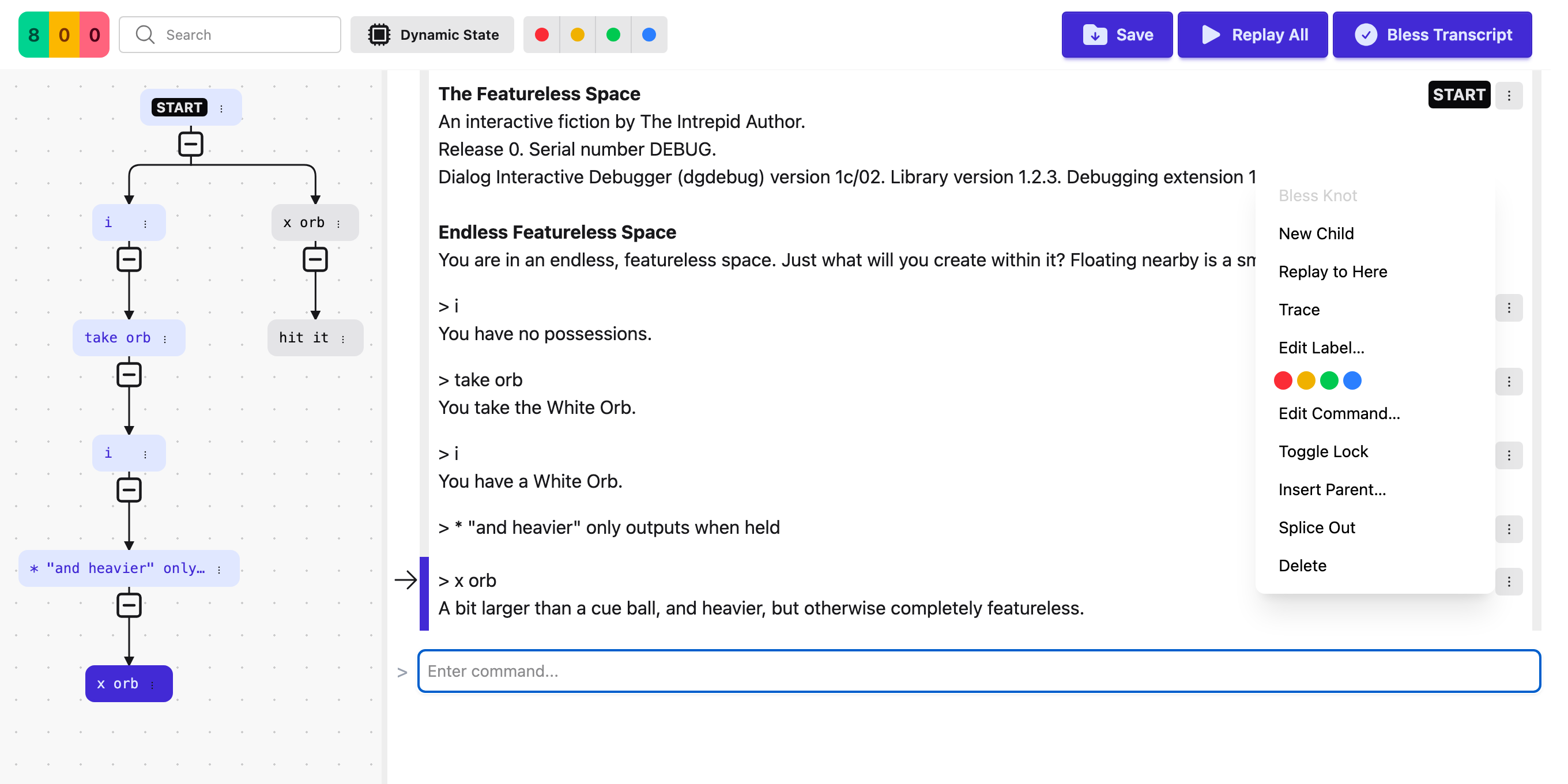
Every knot’s "…" button opens the same menu, in either pane. Opening it does not change which knot is active. The keyboard shortcut shown for each item applies to the active knot.
| Item | What it does | Key |
|---|---|---|
Bless Knot |
Accepts this knot’s current response as correct. Disabled if nothing is pending. |
⌥B |
New Child |
Starts a new command from this knot — the time-travel action. |
⌥A |
Replay to Here |
Re-runs root-to-here and checks each response against what is blessed. |
⌥R |
Trace |
Opens the Trace panel for this knot. On the root, traces game startup. |
⌥T |
Edit Label… |
Sets, changes, or clears the knot’s label. |
⌥L |
marker swatches |
Sets one of four marker colours, or clears the marker. |
— |
Edit Command… |
Changes this knot’s command text. |
⌥E |
Toggle Lock |
Locks or unlocks the knot against deletion. |
⌥K |
Insert Parent… |
Splices a new knot in above this one. |
— |
Splice Out |
Removes this knot, reattaching its children to its parent. |
— |
Delete |
Deletes this knot and everything beneath it. |
⌥D |
On the root knot every item is disabled except Trace, which becomes "trace startup". Trace and Insert Parent are also unavailable on a knot reached through a keystroke prompt. Delete refuses, with a brief error, if the knot or any descendant is locked or labelled.
The navbar
From left to right, the navbar holds:
-
Status counts — a green ok count, and clickable yellow new and red error counts. Clicking new or error jumps to the next knot of that status anywhere in the tree, cycling round with wraparound and remembering where it left off for each status.
-
Search — described below.
-
Dynamic State — a toggle that shows, inline after each knot, what changed in the game world. Available only with the
dgdebugengine; see Dynamic State and Trace. -
Marker filter — four colour swatches. Each narrows the nav graph to branches that contain that marker colour; clicking the active one again clears the filter.
-
Save (⌘S), Replay All (⌥⇧R), and Bless Transcript (⌥⇧B).
Replaying
Replaying re-runs recorded commands against the interpreter and checks the responses against what you have blessed. It is how you confirm a change to your source did what you meant it to.
Replay to Here (⌥R) re-runs from the root through the active knot and checks each response along that one path. Replay All (⌥⇧R) does the same for every leaf in the tree at once, in parallel, behind a progress notification you can cancel. Use Replay All to confirm the whole skein still holds together, not just the path you happen to be looking at.
Replay always compiles against the current files on disk, including any .dg files you have added
or removed since the session started — you do not need to restart the session first. See
Live source tracking.
Search
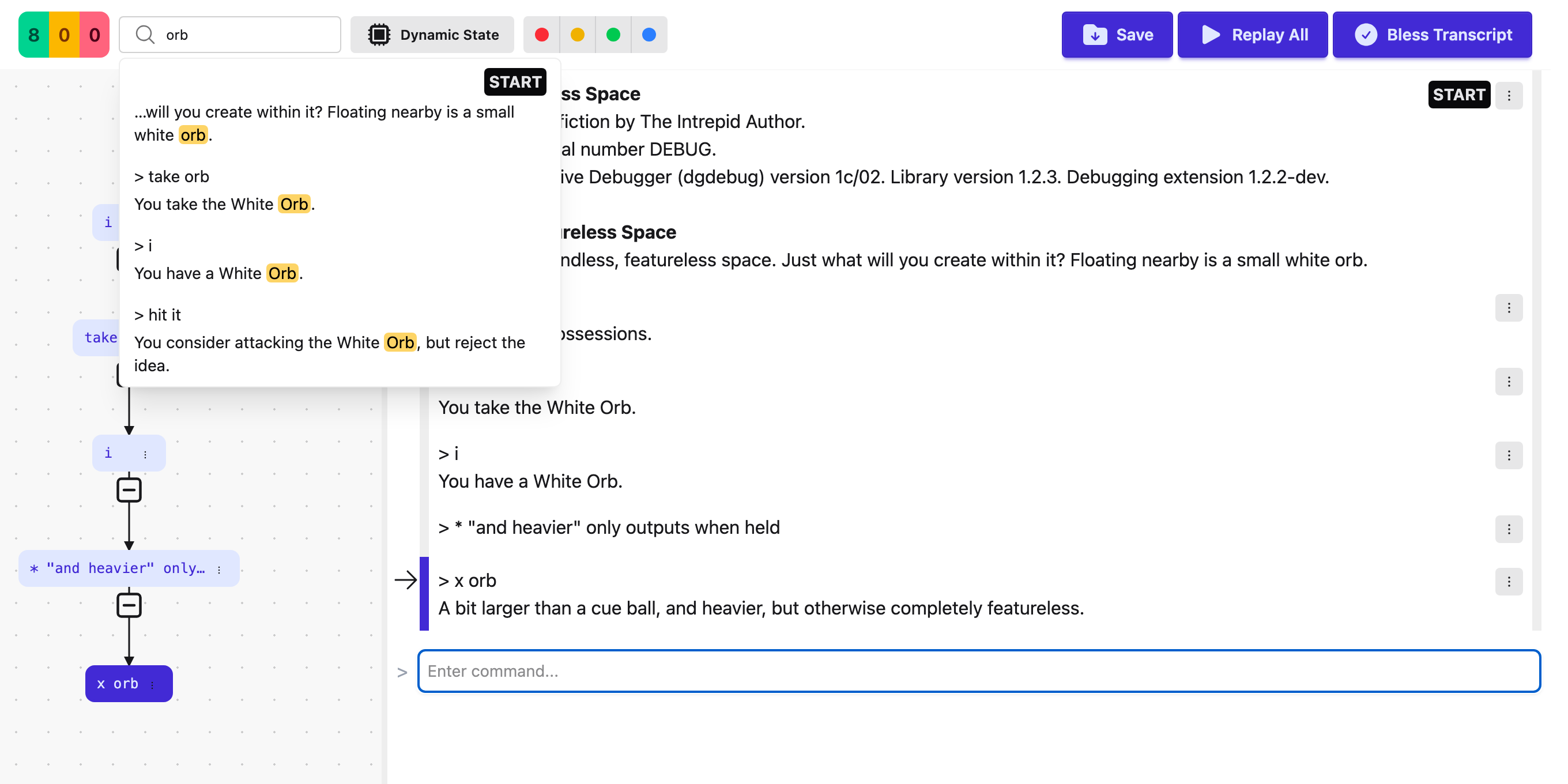
The search box is in the navbar; Option+F / Alt+F jumps to it. Searching is incremental. Every whitespace-separated term must match (the terms are combined with AND), and the match is against each knot’s label and its response text.
Results appear in a dropdown, each showing the command, a label chip if there is one, and a snippet with the matched terms highlighted. Arrow keys move through the results; Enter opens the selected one, scrolling the transcript to it; Esc clears the search.
Keyboard shortcuts
The Skein is designed to be usable without a mouse. On macOS the modifier is Option (⌥); on Windows and Linux it is Alt. Where the table below shows ⌘, use Ctrl on Windows and Linux.
| Keys | Action |
|---|---|
|
Save skein |
|
Undo / Redo (structural edits only; instant) |
|
Replay All |
|
Bless Transcript |
|
Focus the search box |
|
First knot (root) / last knot (leaf) |
|
Open the Command Palette from inside the Skein / Trace panel |
| Keys | Action |
|---|---|
|
Parent / child knot |
|
Previous / next sibling (alphabetical) |
|
Bless Knot |
|
Replay to active knot |
|
New Child (time travel) |
|
Edit Command |
|
Edit Label |
|
Toggle Lock |
|
Delete |
|
Toggle expand / collapse in the nav graph |
|
Trace |
-
Insert Parent and Splice Out are in the "…" menu with no accelerator.
-
The navbar new / error seek badges, zoom, pan, and pane resize are mouse-only.
Saving and version control
A .skein file is plain, line-oriented text at the project root, laid out to produce small, readable
diffs. Commit your skeins alongside your source. They are as much a part of the project as the
.dg files.
Saving is explicit. Nothing else writes the .skein file — not stopping the session, not switching
skeins, not closing the panel. If the file changes on disk while a session is open (a colleague’s
commit, a branch switch), the extension prompts you to reload it.
What’s next
Dynamic State and Trace — the two inspection tools that need the dgdebug engine.