How the Skein Works: Time Travel and the Tree of Timelines
The Skein is worth a few minutes of theory before you start clicking around in it. The panel makes much more sense once you have the model in your head, and the model is not complicated: it is a permanent, branching record of everything you have ever tried, plus a viewpoint you can move anywhere within it.
The core idea
Running a piece of interactive fiction is a loop. You type a command, the interpreter prints a response, the world changes, and you go again. At an ordinary prompt that history is write-once-and-forget: scroll up and you can read it, but you cannot re-enter it.
The Skein keeps the history and makes it branching. Every command you have ever typed, together with the response it produced, is stored as a knot. The knots form a tree that only ever grows. The Skein itself is that tree plus a live interpreter process; this chapter is about the tree.
Knots
A knot is one command and the response it produced.
The same command text can appear as many different knots, because the same input means different
things in different situations. take lamp in the cave, take lamp in the shop, and take lamp
after you already picked it up are three separate knots, each with its own response, each sitting
at a different point in the tree.
A knot also carries a few pieces of state you can set yourself: an optional label, an optional marker colour, a locked flag, and — once you bless it — a blessed response that is kept distinct from the knot’s current one.
The tree
Every skein has a single synthetic root knot, shown as START. Its "response" is the
interpreter’s startup banner: the text your project prints before the first prompt.
A knot’s children are the commands you have tried from that point. The tree grows only downward and outward — trying a new command adds a child, and nothing is ever removed to make room for it.
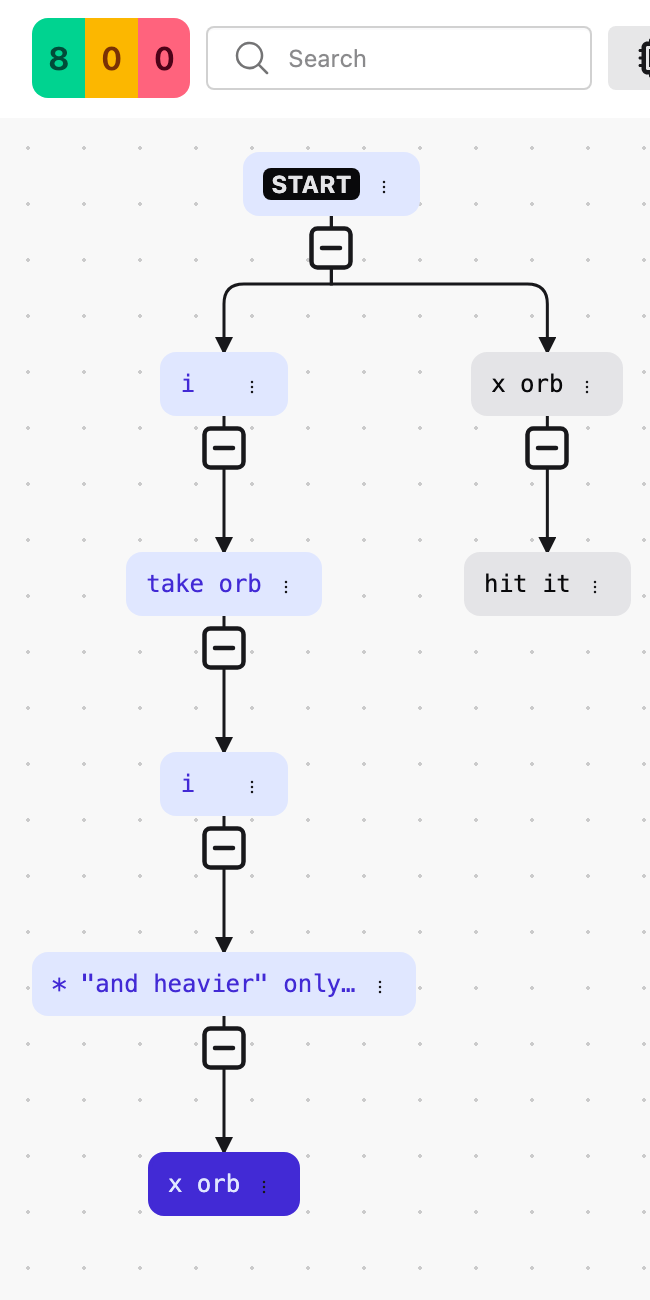
The spine and the active knot
At any moment one path through the tree is special: the spine, which runs from the root down to a single leaf. The transcript on the right of the panel always shows the spine, root to leaf, as a readable play session.
Mechanically, each knot remembers which of its children is "selected". Follow those selected-child pointers from the root and you trace out the spine.
Separately, the active knot is where your viewpoint is — the last knot you clicked or navigated to. It can sit anywhere along the spine, or above it, without shortening the spine. Clicking a knot re-points the spine to run through it, and then extends the spine downward through any unbroken run of single-child knots until it reaches a branch or a leaf. In other words, selecting a knot on a straight stretch of history carries you to the end of that stretch.
Siblings
Siblings are knots that share a parent. They are ordered alphabetically by command text, not by the order you created them. This is the order the keyboard’s "previous sibling" and "next sibling" keys move through, and it is the left-to-right order the nav graph draws them in.
Two siblings can never have the same command. Re-running a command that you have already tried from a given knot simply re-selects the existing child rather than creating a duplicate.
Time travel
Move the active knot to any earlier point in the tree, enter a different command, and you have a new branch. The path you were previously on is still there in full; it is just no longer the displayed spine. Every branch is a timeline that continues to exist. Choosing a different branch only changes which selected-child pointers the spine follows — it does not disturb anything.
Under the surface, the interpreter cannot rewind. When you act from a knot that is not where the interpreter currently sits, the extension quietly stops the interpreter, starts a fresh one, and replays the commands from the root down to your chosen knot before sending the new command. This happens constantly and is not something you trigger or confirm — it is simply how the Skein stays in step with wherever you have pointed it.
Blessing
Blessing a knot records that its current response is correct.
From then on, the knot is a check. If a change to your source ever makes that command produce different text, the knot is flagged as an error and the transcript shows you a word-level diff: what was removed, what was added. If the response goes back to matching, the flag clears.
There are two blessing actions. Bless Knot blesses a single knot. Bless Transcript blesses every not-yet-valid knot from the root down through the whole visible transcript, which is the quick way to accept a batch of intended changes at once. Either way, blessing replaces the knot’s stored "correct" response with its current one and marks the knot valid.
Knot status and tree status
Each knot has a status:
- new
-
No response has been blessed yet. Shown in yellow.
- valid
-
The current response matches the blessed one. Shown in grey.
- error
-
The current response differs from the blessed one. Shown in red.
Separately, every knot has an aggregated tree status: the worst status found among that knot and all of its descendants, where error outranks new and new outranks valid. The nav graph uses this to tint the ancestors of a troubled knot, so a red or yellow node deep in a collapsed branch still shows up as a coloured hint on the branch above it. A knot’s own status and its tree status are deliberately different things.
Undo and redo
Undo and redo are unlimited, and always instant.
They cover structural edits to the tree: running a new command, blessing and unblessing, deleting and splicing, editing a command, inserting a parent, and changing a label, lock, or marker. They do not cover plain navigation — moving the active knot, expanding or collapsing nodes, running a replay. Undo never re-runs anything; because the tree is stored as a sequence of immutable versions, undoing is just a matter of pointing back at the previous one.
Labels, locking, and markers
A label is a short name you give a knot. Labels are unique within a skein, which makes them
useful as anchors — for instance, a knot labelled WALKTHROUGH is what Export Web Page follows
to build the walkthrough transcript it embeds (see Building and Releasing Your Project).
Locking a knot protects it from deletion. A labelled knot is treated as locked for this purpose too. Deleting a knot is refused outright if that knot, or anything beneath it, is locked or labelled — so a lock on a leaf also protects the path that leads to it.
A marker is one of four colours, or none. It has no effect on anything; it is a visual note to
yourself that a knot needs attention. Markers are saved in the .skein file, and the navbar has a
filter that narrows the nav graph to just the branches carrying a given colour.
Fixed for the life of a skein
Two things are chosen when a skein is created and can never change afterward: the engine
(dgdebug, frotz, or frotz-release) and the random seed. If you need to test your project
against a different seed, or compare the frotz and frotz-release engines, you do that in a
second skein — see When to Use More Than One Skein.
What’s next
Creating a Skein and Touring the Panel — create a skein and tour every control in the panel.